
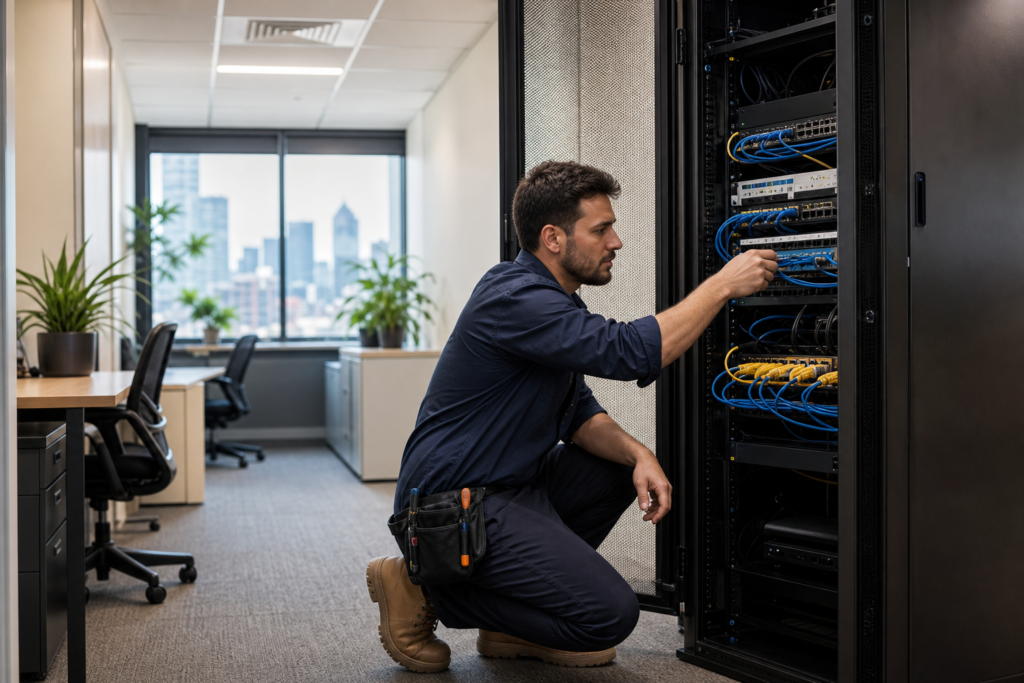
Network support covers the devices, connections and physical infrastructure that let your business communicate, share resources and reach the internet. For a Melbourne business, remote help may suit a configuration fault, while dropouts, dead zones, cabling issues, faulty equipment or office changes often require on-site inspection and testing.
This guide helps you identify the likely source of a problem, choose the right support arrangement and prepare a useful request before booking a technician.
What network support covers
Network support services keep the connections between devices, local equipment, cloud services and the internet working reliably. They can include network design and setup, Wi-Fi troubleshooting, cabling checks, router and switch configuration, access-point placement, connected-device faults, maintenance and documentation.
A technician may investigate why staff lose access to a shared printer, why Wi-Fi is slow in one meeting room, why a new workstation cannot reach a server or why several devices disconnect after a router change. The work can involve both software settings and physical equipment.
Network support is one part of broader IT support. General IT support may also cover computers, user accounts, Microsoft 365, printers, backups and software. Internet-provider support usually covers the connection entering your premises and the provider’s modem or service. Network support covers equipment and configuration inside your business, although the responsibilities can overlap.
Network troubleshooting is also different from cybersecurity. Secure passwords, router settings, updates and access controls matter, but troubleshooting does not automatically provide complete security monitoring, incident response or backup protection. The Australian Cyber Security Centre identifies network devices and services as important security considerations for small businesses and recommends improving router security and securing servers. Read the ACSC guidance on small-business network security. Source: Small Business Cyber Resilience Service | business.gov.au.
Diagnose the likely source of a network problem
Start by comparing the scope of the fault. Ask whether it affects one device or many, one room or the whole site, Wi-Fi or wired connections, and whether it began after a specific change. These distinctions do not prove the cause, but they give a technician a much better starting point.
One device is affected
If every other device works normally, investigate the affected computer, phone, printer or network adapter first. Possibilities include an incorrect setting, outdated driver, damaged cable, failed adapter, weak signal or an account or application problem. Test the device on Wi-Fi and a known-working wired connection where practical.
Several devices are affected in one room
A single room with poor coverage or repeated dropouts points towards access-point placement, interference, a damaged cable or a local switch or access-point fault. Compare the problem with a nearby room and note whether wired devices in that area fail as well.
Wi-Fi performance changes with distance, walls, interference and the number of active devices. Moving an access point, checking its uplink or correcting its configuration may help. Adding another access point without checking the existing network can create overlapping coverage and further instability.
The whole site is affected
If wired and wireless devices lose access at the same time, inspect the modem, router, firewall, switch, power supply and upstream connection. A recent firmware update, configuration change, power event or failed device may be relevant.
If the provider’s service status, modem connection or wide-area link is failing, the internet provider may need to act. If the internet is available but local devices cannot communicate, the issue is more likely inside the business network.
Only Wi-Fi or wired connections are affected
Wi-Fi-only problems usually involve coverage, radio interference, access-point configuration, authentication or device compatibility. If a laptop works through Ethernet but not wirelessly from the same location, the internet service may be functioning normally while the wireless layer needs attention.
Wired-only faults suggest a cable, wall outlet, patch panel, switch port, VLAN or network adapter issue. Physical inspection is often more useful than repeated remote restarts, particularly if the fault moves when a cable or switch port changes.
Problems involving routers, switches, access points or mesh systems may require physical inspection, secure configuration and testing at the premises. TechMate installs, configures and repairs this network equipment for homes and businesses.
When should you suspect a security incident?
A network outage is not automatically a cyber incident. Treat unexpected administrator changes, unfamiliar devices, suspicious login activity, ransomware messages, disabled security tools or unexplained data access as a security concern, not just a performance fault. Avoid deleting evidence or repeatedly changing settings before the incident is assessed.
Choose the right network support model
Remote versus on-site describes how support is delivered. One-off, ongoing, co-managed and white-label support describe how the relationship is organised. Separating these decisions helps you choose a service that fits the actual risk and workload.
| Support model | Best fit | Main trade-off |
|---|---|---|
| Remote troubleshooting | Configuration faults and software settings that need no physical access | Cannot inspect cabling, ports, power, equipment placement or physical damage |
| On-site support | Dropouts, dead zones, equipment installation, cabling checks and office changes | Requires premises access and may involve call-out or travel costs |
| One-off assistance | A defined fault, equipment replacement or small network change | You must arrange another engagement if the problem returns |
| Ongoing support | Recurring maintenance, advice, documentation and a known support path | Requires an agreed scope and recurring arrangement |
| Co-managed support | An internal IT contact needing extra capacity for sites, rollouts or physical tasks | Responsibilities must be documented |
| White-label MSP field support | MSPs needing a local technician within their tools and client process | The partner must follow escalation, reporting and communication rules |
Remote support is sensible when symptoms point to a setting and the affected device can be accessed safely. On-site support is stronger when someone must trace cables, inspect a comms room, test equipment, check signal quality or complete a physical installation.
Twenty-four-seven technical support is an agreed service arrangement covering work outside standard hours. It is not automatically necessary for every business network. Consider it when an after-hours outage has a serious operational cost, then compare the promised response, escalation and resolution process.
For an MSP, a local partner can extend physical delivery without taking over the client relationship. TechMate provides field technician services for network changes, infrastructure work and other agreed on-site tasks.
Prepare a useful network support request
Before booking, prepare the following information:
- Location: the Melbourne suburb, site address and access restrictions.
- Symptoms: what fails, what still works and any exact error message.
- Scope: affected users, devices, rooms and applications.
- Timing: when the issue began and how often it occurs.
- Connection type: Wi-Fi, Ethernet, VPN, mobile broadband or another link.
- Recent changes: new equipment, moved desks, updates, power events or provider work.
- Equipment: modem, router, firewall, switches, access points and relevant cabling.
- Business impact: whether work is slowed, stopped or limited to particular users.
- Physical access: whether the technician can reach cabinets, access points and patch panels.
Do not email administrator passwords or sensitive credentials in an ordinary booking message. State what access is needed, then provide credentials through the agreed secure process.
“The office Wi-Fi is slow” gives little direction. “Six staff in the rear meeting room lose Wi-Fi for two to five minutes every afternoon, wired desktops remain connected, and the problem began after an access point was moved” helps a technician prioritise coverage, the access point, its uplink and the timing pattern.
What a good network support engagement should include
A competent engagement should produce more than a reboot. It should establish the symptoms, inspect the relevant network path, identify the likely cause, make controlled changes, test the result and explain what happens next.
Diagnosis and physical checks
The technician should compare working and non-working connections and check cables, ports, access-point signal, router and switch status, addressing, authentication, recent changes and the upstream connection.
Controlled changes and testing
Changes should stay within the agreed scope and be recorded. Testing should reflect the original fault. If the problem affected a rear office, test there. If staff lost access to a shared application, test it from representative wired and wireless devices.
Documentation and handover
Ask for a plain-English record covering the symptoms, diagnosis, changes, equipment, tests, unresolved risks and recommended follow-up. Useful documentation can include a current topology or logical diagram, device and port details, important settings and access-point locations.
The Australian Government Information Security Manual recommends network documentation that accurately represents the current network, including diagrams and settings for critical servers, network devices and security appliances. See the Australian Government networking guidance. Accurate documentation supports troubleshooting and incident response, but it does not by itself prevent cyber incidents.
Match network support to your situation
The right service depends on the environment, physical work and whether you need a single intervention or continuing assistance. Listed prices are specific TechMate offerings, not universal prices. Parts, scope, travel and project requirements can affect the final quote.
- Home or home office: Home IT Support starts from $99 for Wi-Fi, new device, printer and smart-device needs. Hardware Installation & Repair is also listed at $99 for equipment installation or repair.
- Small business: Small Business IT Support is listed at $120 and covers office network and Wi-Fi support, Microsoft 365, Google Workspace, backups, security basics and hardware purchasing assistance.
- Medium business: Medium Business IT Support costs $120 and includes network upgrades, device rollouts, office moves, Microsoft 365, server and communications rooms, and extra capacity for internal IT.
- Managed service provider: MSP Field Technician Support starts from $150 and includes network troubleshooting, cabling, patch-panel work, equipment replacement, server-room work and white-label field tasks.
For a small office, start with Small Business IT Support for office network and Wi-Fi assistance. Choose Medium Business IT Support for rollouts, office moves, upgrades or internal IT capacity gaps.
For a provider or internal team needing physical equipment work, Hardware Installation & Repair is the focused path. MSPs needing a local technician can review MSP Field Technician Support.
How to compare network support providers
Ask each provider to respond to the same brief. A low hourly rate is not useful if the provider cannot reach equipment, document changes or explain who owns the next step.
- Scope: Does the service cover Wi-Fi, cabling, routers, switches, access points, firewalls, VPNs and connected devices?
- Physical capability: Can the technician inspect comms rooms, patch panels, ports and equipment placement?
- Delivery boundary: Which faults are remote, and which require an on-site visit?
- Response wording: Is the promise about acknowledgement, arrival, diagnosis or resolution?
- Pricing: Are hourly, flat-rate, call-out, travel, parts and after-hours charges clear?
- Security and backups: Who owns router hardening, administrator access, updates and recovery checks?
- Documentation: Will you receive diagrams, settings, job notes, test results and outstanding actions?
- Escalation: Can the provider work with your ticketing or RMM process?
- Commercial terms: Is the provider insured, and are one-off, retainer or co-managed options available?
Network support questions Melbourne businesses ask
What are network support services?
They diagnose, maintain and improve the connections, equipment and settings that let users and devices communicate. Services can include Wi-Fi troubleshooting, cabling checks, router and switch configuration, access-point work, network design, installation, testing and documentation.
What does a computer network support specialist do?
A specialist investigates connection and performance problems, checks the path between devices and services, configures equipment, tests changes and records the result. They may troubleshoot Wi-Fi and Ethernet, inspect routers, switches, access points and cables, maintain diagrams and escalate provider, hardware or security issues.
Do businesses need 24/7 technical support?
Only when the cost of an overnight outage justifies that coverage. Many small offices can use business-hours support with an agreed urgent escalation path.
How do I know whether my internet provider is responsible?
If the provider connection or modem loses its wide-area link and every local device is affected, the provider may be responsible. If the internet works but devices cannot communicate locally, or only one room, cable, access point or switch is affected, the fault is more likely inside your network.
TechMate IT Support provides on-site network assistance across Melbourne and Geelong, with same-day availability reported in most cases. For practical diagnosis, installation or troubleshooting, arrange the relevant on-site network support service and confirm the scope before attendance.